Clipper
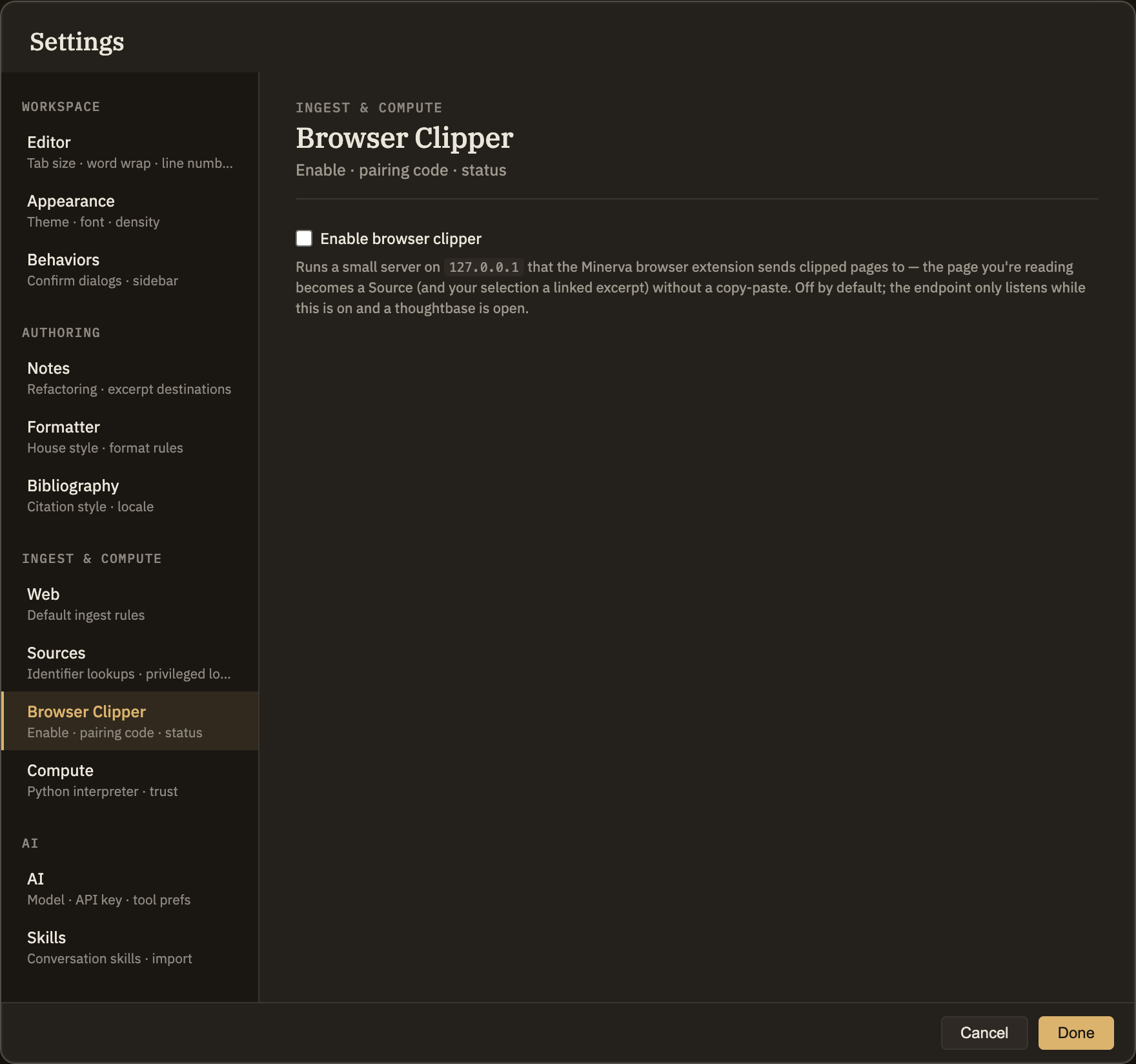
The clipper lets you save the web page you're reading straight into Minerva as a source, using a small companion add-on for your browser. This tab turns that on and shows the one-time code that links your browser to Minerva.
Turn on the clipper
Check Enable browser clipper to switch the feature on, and uncheck it to switch it off. That's all it takes — the change happens as soon as you click, and nothing is left listening for your browser when the box is unchecked.
The pairing code
Once the clipper is on, a pairing code appears. It's hidden by default; Reveal shows it and Copy puts it on your clipboard. Paste it into the browser add-on once, and from then on your browser can send pages to Minerva. You only need to do this a single time.
Regenerate the code
Regenerate code creates a brand-new pairing code and retires the old one. Any browser you'd already paired will stop working until you copy the new code and paste it in again. Use this if you want to re-pair from scratch.
Open a thoughtbase first
The clipper needs somewhere to file the pages you save, so it only runs while a thoughtbase is open. If you turn it on before opening one, you'll see a reminder to open a thoughtbase, and the pairing code appears once you do. Your choice to enable the clipper is remembered in the meantime.