Docs/Notes
Notes
A note is where you write. Notes are plain text, so anything you type stays readable and portable, and you can organize them into folders however you like. Beyond ordinary prose, a note can hold links to other notes, formatting, images, tables, math, charts, and more — plus an optional block of properties at the top that records structured details like tags or a status.
Creating and managing notes
You can work with notes from the left sidebar, the command palette, or the File menu:
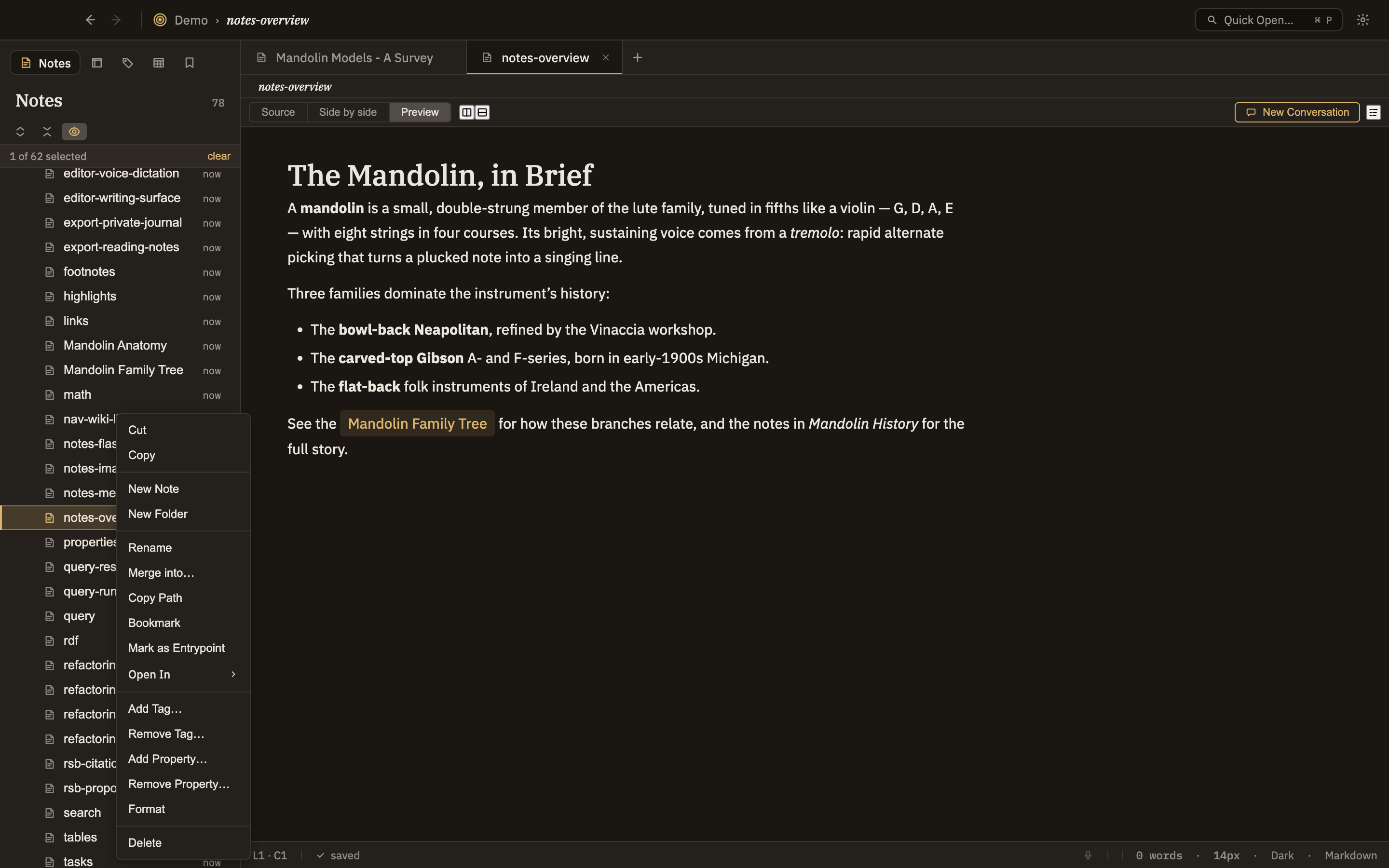
What you can put in a note
Beyond prose, a note can hold any of the following. Each has its own page showing how to add it and how it looks:
Links
Connect notes to each other and see what links back.
🏷️Properties
Structured details like tags and status at the top of a note.
📖Typed notes
Notes that are a kind of thing, with fields to match.
🖍️Highlights
Mark a passage as important.
☑️Task lists
Checkboxes you can tick off as you go.
💡Callouts
Titled note, tip, and warning boxes that stand out.
🖼️Images
Drag, paste, or link images into a note.
📋Tables & CSV
Tables that also work as structured data.
🦶Footnotes
Asides and citations gathered at the bottom.
🃏Flashcards
Two-sided study cards you write inside a note.
🎬Media
Videos as click-to-open cards.
∫Math
Inline and full-width equations.
🔀Diagrams
Flowcharts, sequence diagrams, and more.
📊Charts
Interactive charts, live in the note.
🧮Code & compute cells
Highlighted code, plus cells you can run.
📊Query cells
Embed a live answer from your knowledge base or tables.
🔎Search cells
A live list of related notes, by meaning or keyword.
🐢Turtle / RDF
Add structured facts directly inside a note.