Media
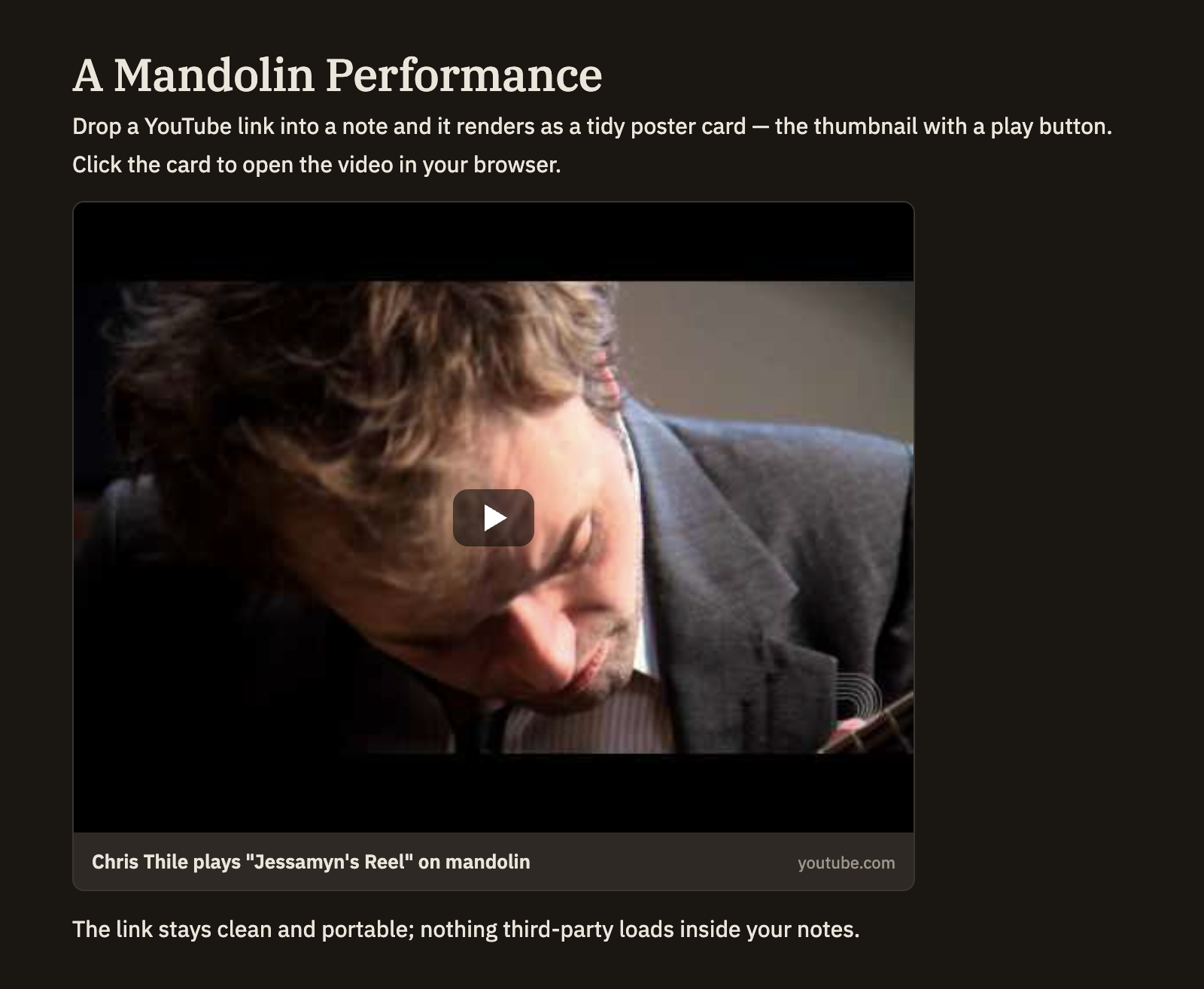
You can drop a YouTube video into any note. Minerva shows it as a tidy poster card — the video's thumbnail with a play button — and clicking the card opens the video in your web browser. The video plays where you already watch videos, not inside your notes.
Adding a video
The easiest way is to right-click in the editor and choose Elements → YouTube Video. That drops in an empty video cell with the cursor ready for you to paste a link.
A video cell holds the link on its first line. Anything you type on the lines below becomes a caption, shown under the card in place of the default "Watch on YouTube" label:
```youtube
https://www.youtube.com/watch?v=aBcDeFgHiJk
Feynman on how rubber bands work
```
Any YouTube link works
Paste the link in whatever form you have it — the one from the address bar, the one the Share button copies, a Shorts link, or a link pulled from an embed snippet. Minerva sorts it out and tidies it up, dropping tracking bits along the way, so the card always points to a clean link to the video.
If your link starts the video at a particular moment — a "start at 1:30" link — that offset is kept. Click the card and the video opens right at that point.
The poster card
In the reading view, the video appears as a poster card: the thumbnail with a play button, your caption beneath it, and a small line showing that the link leads to YouTube. Click the card to open the video in your browser.
When you export or publish a note, the card becomes a clickable thumbnail image so anyone reading the exported note can still see the poster and click through to watch.