Highlights
Wrap a passage in double equals signs and Minerva highlights it — a tinted mark behind the text, just like running a highlighter pen across the page. It's a quick way to flag something as important while you're reading or drafting.
How to highlight
Put == on both sides of the text you want to mark. To give it a color, start with a color name and a colon; leave that off and you get the default tint.
==text====color:text==yellow, green, blue, pink, or orange. Anything else is simply treated as part of the highlighted text, so ==Pythagorean: a²+b²== highlights the whole phrase rather than guessing at a color.A short example:
The migration is safe as long as ==the backfill runs before the
constraint is added==. Everything else is cosmetic.

Flagged for review: ==orange:re-check this once the rebuild finishes==.
Leave a space just inside the equals signs and nothing is highlighted, so ordinary prose like x == y stays untouched.
How highlights look
A highlight appears as a soft color wash behind the text, right in line with the surrounding words. You'll see the same tint whether you're writing or reading the finished page.
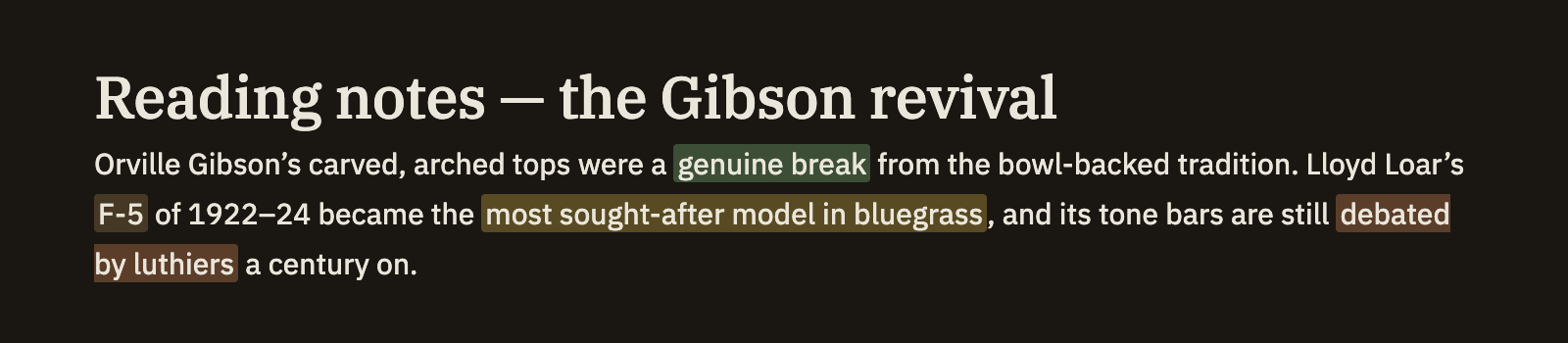
The five colors are tuned to each of Minerva's themes, so a highlight stays easy to read and on-palette whichever theme you're using.