Docs/Refactoring/Manual rename, move & delete
Manual rename, move & delete
Reorganize your notes right in the Notes list — and let Minerva keep your links pointing to the right place as you go.
Rename, move, delete
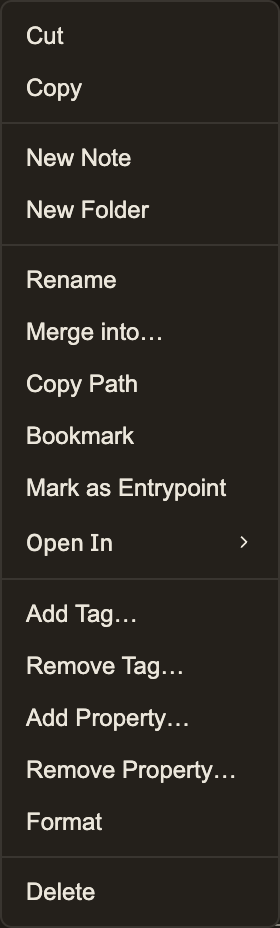
Everything you need is in the right-click menu on a note, or a simple drag.
Rename
Right-click a note and choose Rename. You can also start it from the command palette by searching Rename Note.
Move
Drag a note onto the folder you want it in. Prefer to type a destination? Use Move Note from the command palette.
Delete
Right-click and choose Delete. See Safe delete & dangling links for how Minerva warns you if other notes still point to it.
Cut / Copy / Paste
The right-click menu also offers cut, copy, and paste — another way to move or duplicate notes between folders.
Your links stay correct
When you rename or move a note, Minerva finds every other note that links to it and updates those links for you, so nothing breaks:
Wiki links
A link like
[[old title]] becomes [[new title]] everywhere it appears. Any custom display text or heading you added to the link is kept intact.Links and images to files
Links to other notes and to images are adjusted so they still point to the right file, both from the note you moved and from the notes that link to it.
Citations that point to a source or a saved quote keep working on their own — they refer to the source itself, not to where a note happens to live, so moving a note never disturbs them.
Renaming folders
You can rename or move a whole folder by dragging it, just as you would a single note.