Docs/Left sidebar/Tables
Tables
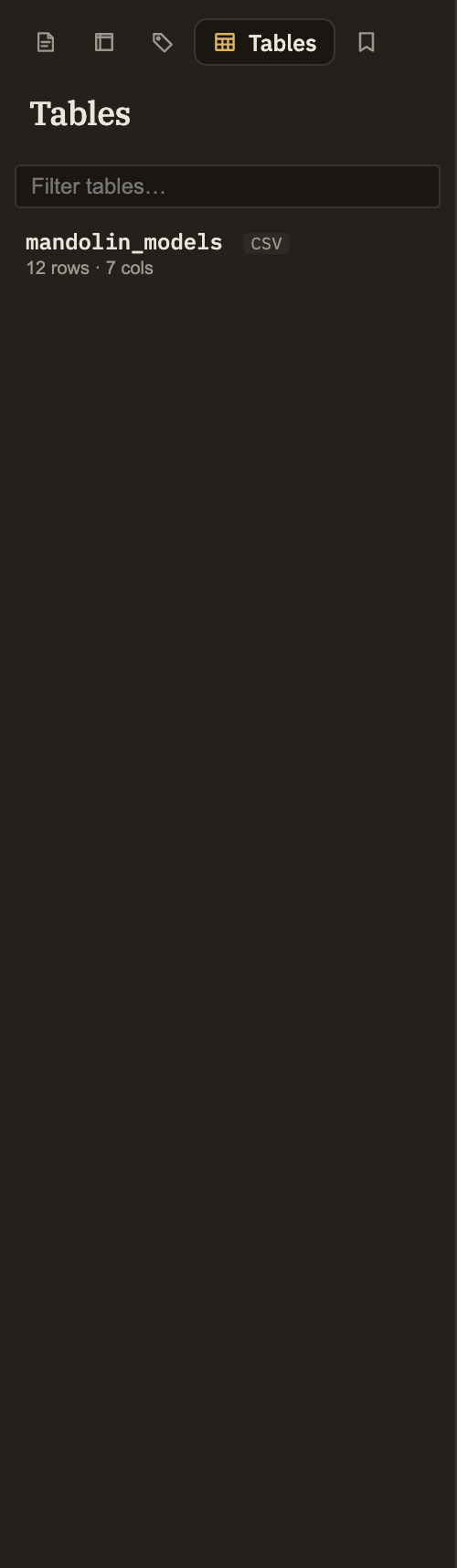
The Tables panel gathers all the tabular data in your project into one place so you can ask questions of it with SQL. It lists two kinds of table: spreadsheet files you've dropped into the project, and named tables you've written inside notes. A small tag on each row tells you which kind it is.
What shows up here
Any spreadsheet file you add to your project appears here automatically — there's no import step. Just drop it into the project and it's ready to query. Edit it, and the panel keeps up; remove it, and its row disappears.
Naming a table inside a note
You can also query a table you've written directly in a note. To make one queryable, give it a name by putting a caption line just above it:
Table: Q3 Sales
| item  | amount |
| ----- | ------ |
| pens  | 3      |
| ink   | 7      |
Once captioned, the table joins this panel and you can query it by name — SELECT sum(amount) FROM Q3_Sales, for example. Save the note to update it; remove the caption to take it back out. Tables without a caption stay private to the note and don't appear here. See Tables & CSV for more.
Every table shares one pool of names, so no two can be called the same thing. If two would clash, only the first stays queryable — rename one of them to give them both a home in the panel.
What each row shows
Rows are listed alphabetically, with a filter box at the top that narrows the list by name as you type.
Querying a table
Click any row to open a fresh query already filled in to show you that table's data. From there you can edit the query, run it again, and explore the data however you like.
Right-click a row for a few more options: