Docs/Conversations/Drafts
Drafts
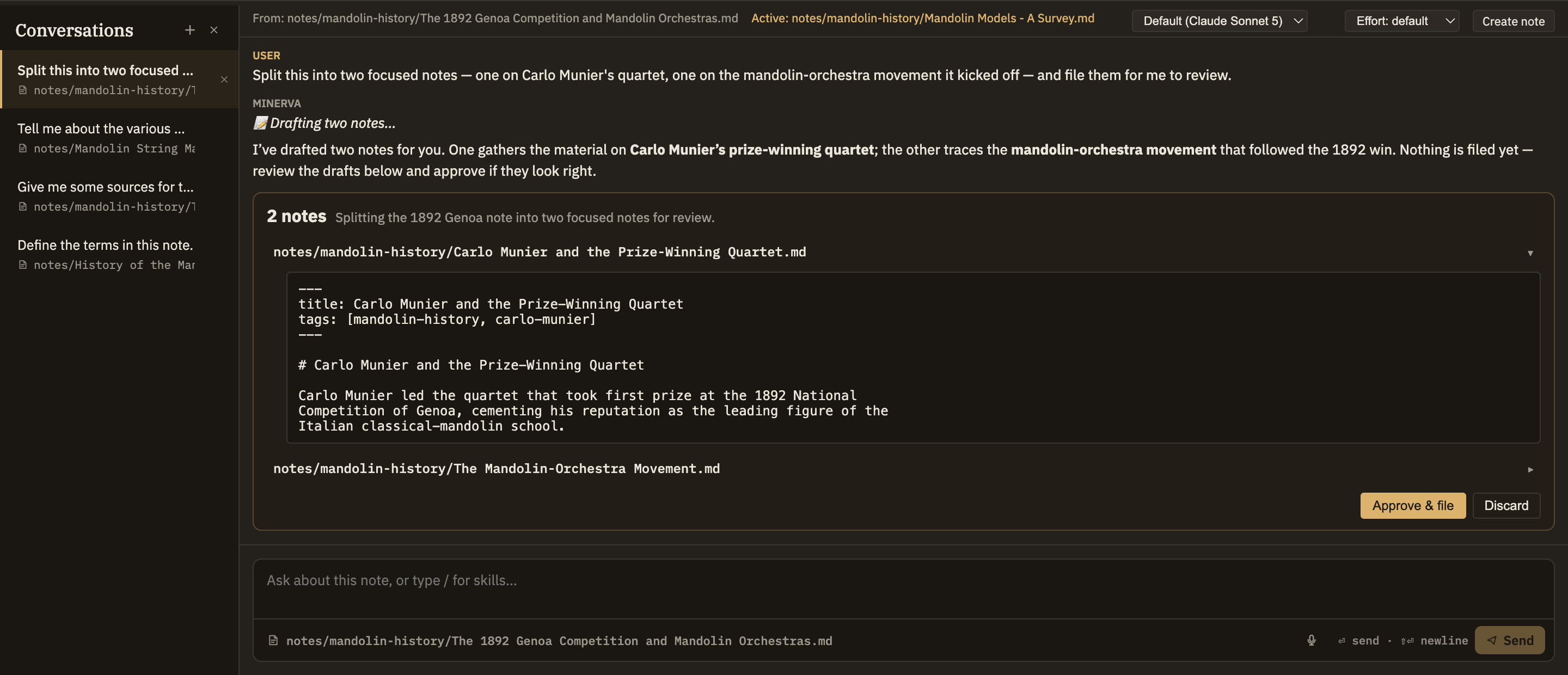
When you ask the AI to change something in your project, it doesn't just do it. Instead it hands you a draft card — a proposed note, set of tags, claim, or rewrite — right there in the conversation. Nothing it suggests becomes real until you accept it.
When a draft card appears
A draft card shows up whenever the AI produces something that would change your project. Ask it to file a new note, summarize a source, tag a batch of files, pull claims out of a paper, reorganize or rename notes, or rewrite a note — and each time you get a card describing exactly what it wants to do. The card appears right under the AI's message, so you never have to go looking for it.
Because you already made the call at the card itself, accepting a draft files the change straight away — you don't then have to approve it a second time in the Proposals panel. If you'd rather review a change more carefully before it lands — comparing the before and after side by side — see The propose → review → approve loop.